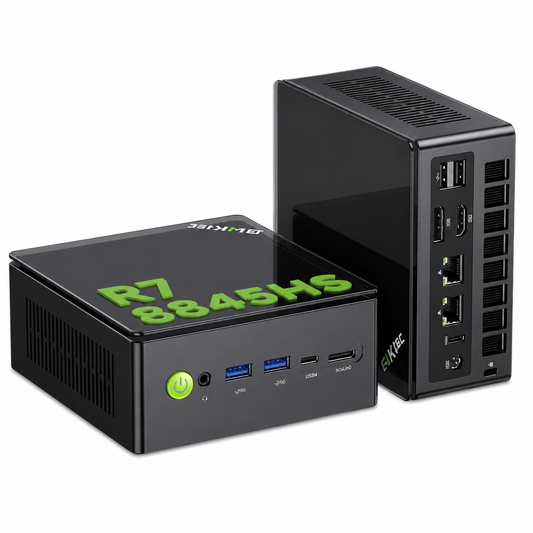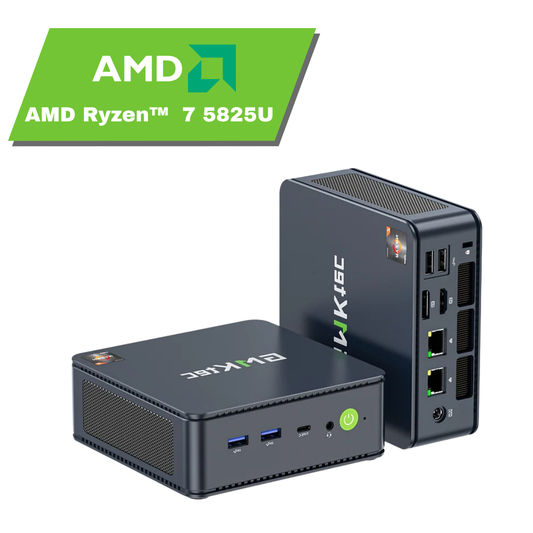

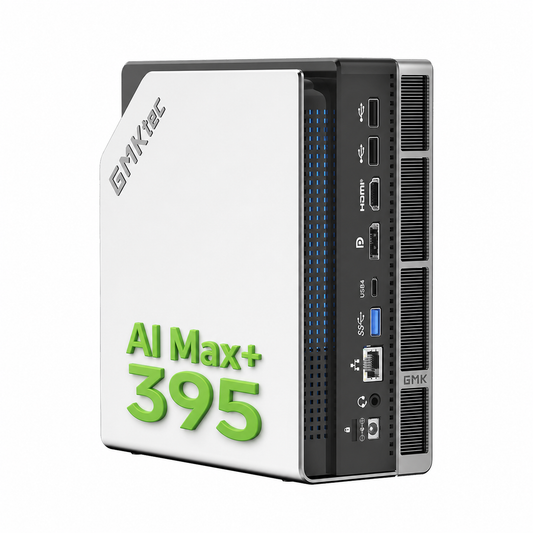

Mini-PC Guide 2026: Best Models, Uses, and Buying Tips
A mini-PC looks unassuming on the desk, but it can cover a surprising amount of everyday work, media use, and even home-server tasks. The catch is that not every mini-PC is built for the same job. Some are ideal for home-office and browsing, others for media playback or always-on roles, and a few deliver strong performance without turning into a full tower. This guide explains what a mini-PC is, what to check before buying, and which models make sense for different use cases.
What Is a Mini-PC?
A mini-PC is a compact desktop computer designed to do most of the work of a regular PC while taking up far less space. That sounds simple, but the category spans everything from tiny office boxes to high-performance systems with Intel- and AMD-Prozessoren, erweiterbarer Arbeitsspeicher, and multiple connectivity options. Compared with a classic desktop, a mini-PC trades raw expansion room for a much smaller footprint. Compared with a laptop, it usually offers better value for stationary use because you do not pay for a built-in screen, keyboard, or battery. Expectations matter, though: mini-PCs are usually quiet, efficient, and capable, but they are not automatically suited for heavy gaming, long rendering jobs, or workstation-class workloads. Many buyers in Germany now choose them for home-office, sparse desks, living-room setups, and home-server tasks because the balance of Leistung und Ausstattung is often very attractive. In the sections below, the article first explains the basics, then shows who should buy one, what hardware matters most, and which mini-PC fits which scenario best.
Mini-PC basics and core idea
At its core, a mini-PC is simply a small computer that sits between a desktop tower and a laptop in terms of design philosophy. The most common versions are tiny boxes that fit behind a monitor or beside a router, but there are also stick-like designs meant for very light workloads. In both cases, the idea is the same: connect a monitor, keyboard, and mouse, and you have a full desktop setup without the bulk. For first-time buyers, that makes the category easier to approach than it may look at first. A mini-PC can feel almost invisible in a clean office, yet still handle email, documents, video calls, and streaming without drama.
How mini-PCs compare to desktop PCs and laptops
The biggest advantage over a desktop tower is obvious: footprint. A mini-PC can disappear on a shelf or behind a screen, and it usually consumes less power and makes less noise. Compared with a laptop, it often offers better price-to-performance for stationary work, especially if an existing monitor and peripherals are already available. Where mini-PCs fall short is expandability and thermal headroom. A gaming tower can house a large graphics card and bigger cooling, while a laptop can move from room to room. A mini-PC sits in the middle: practical, efficient, and often strong enough for alltägliche Aufgaben, but not meant to replace every high-end desktop or portable notebook.
Who Should Buy a Mini-PC?
The most useful way to think about a mini-PC is by job-to-be-done, not by size alone. Buyers usually want one of four things: a tidy home-office setup, a quiet media box, an always-on home-server, or a compact machine that can handle more demanding productivity and light creative work. Each of those needs points to a different balance of processor power, Arbeitsspeicher (RAM), storage, and ports. That is why a mini-PC that looks “fast enough” on paper can still disappoint if the connectivity is wrong or if the cooling is too weak for 24/7 use. Office users generally benefit from low noise and 16 GB RAM. Media users need reliable HDMI output and stable playback. Server buyers should look for dual LAN, Linux support, and good storage options. Advanced users may also care about USB4, fast SSD upgrades, or integrated graphics that stretch beyond basic office duty. The category is smart when space matters, electricity costs should stay low, or a second full desktop would be overkill. It is less smart if the main goal is maximum gaming performance or a fully modular workstation.
Mini-PCs for home-office and everyday tasks
For office work, browsing, email, spreadsheets, and video calls, mini-PCs are a very natural fit. They stay quiet, draw little power, and make it easy to keep a desk uncluttered. A good model with 16 GB RAM feels noticeably smoother when several browser tabs, Teams or Zoom, and office apps are open at the same time. That is why many home-office buyers in Germany now prefer a mini-PC over a budget laptop that feels cramped on a large monitor. The sweet spot is usually a compact system with stable Wi-Fi, enough USB ports for peripherals, and a fast SSD for quick startup.
Mini-PCs for media playback and living-room use
A mini-PC can also work nicely as a TV-connected media box for streaming services, local video libraries, and casual browsing from the couch. The key points here are HDMI, audio output, and a chassis that fits neatly into a cabinet or beside a television. Silent or near-silent operation matters more in a living room than raw CPU strength. Remote-control support, wake-from-sleep behavior, and a simple wireless keyboard or air mouse often decide whether the setup feels elegant or irritating. For pure media playback, overpowered hardware is unnecessary; stability and quiet operation matter much more.
Mini-PCs for home-server and smart-home roles
Mini-PCs are increasingly popular for home-server, NAS-light, and smart-home roles because they combine x86 compatibility with low energy use. They can handle file sharing, Home Assistant, Docker containers, backup jobs, media serving, and other 24/7 tasks without the electricity bill of a bigger desktop. Dual LAN is especially useful if the device doubles as a firewall, router, or network bridge. USB options matter too, because server users often add external drives, adapters, or UPS connections. Linux support is a major practical point here, since many home-server stacks run more smoothly on Linux than on Windows. For buyers who want reliability, storage flexibility, and small size, a mini-PC can be a better home-server than a Raspberry Pi because it brings more performance and broader software compatibility.
Mini-PC Buying Guide: What Matters Most
Buying a mini-PC gets much easier once the hardware is tied to a real workload. The fastest model on the shelf is not always the best value, and a cheap one can become frustrating if it has too little RAM, weak cooling, or bad port selection. The checklist below focuses on what actually changes daily use: processor class, memory size, storage type, graphics strength, and connectivity. For a typical home-office buyer, the minimum sensible target is often 16 GB RAM, an NVMe SSD, and Wi-Fi 6 or better. For server buyers, a second LAN port, reliable cooling, and upgrade-friendly storage matter more than thin design. For creators and light gaming, stronger CPUs, better integrated graphics, and USB4 can become important. The goal is not to chase specs blindly, but to match Leistung und Ausstattung to the job. That is also where mini-PCs differ from many conventional desktops: the margin for error is smaller, so each component has more visible impact on comfort, speed, and longevity.
Choose the right processor for your workload
The processor is the heart of any mini-PC, but not every workload needs the same kind of CPU muscle. Light office use and media playback mostly benefit from a responsive single-core experience, while multitasking, coding, compression, and server workloads benefit from more cores and threads. Low-power chips are great when quiet operation and efficiency matter, but higher-performance processors make sense if the machine has to handle heavier multitasking or longer sustained loads. A mini-PC with a modest CPU can still feel fast for email and documents, whereas a stronger chip becomes noticeable when browser tabs, spreadsheets, and cloud apps pile up. The key is to avoid overbuying. If the main task is office work, paying extra for a high-end processor may not improve the experience nearly as much as stepping up to 16 GB RAM or a better SSD.
How much RAM do you really need?
RAM has a bigger everyday effect than many buyers expect. Eight gigabytes can work for basic browsing and simple office work, but it becomes cramped quickly once several browser tabs, Teams, cloud tools, and background apps are open. That is why 16 GB RAM is the safer baseline for most Windows mini-PCs. It gives enough room for multitasking without forcing the system to swap constantly to storage, which keeps the machine feeling responsive longer. Thirty-two gigabytes becomes useful when the mini-PC needs to run virtual machines, large spreadsheets, photo work, code tools, or multiple services at once. Another detail matters just as much: whether the memory is soldered or installed in SO-DIMM slots. Soldered RAM can limit long-term flexibility, while upgradeable slots make the device easier to extend later. For Windows users, that flexibility often translates directly into better lifespan and smoother daily use.
DDR5 vs DDR4: what buyers should know
DDR5-RAM is the newer standard, but that does not automatically make every DDR5 mini-PC the better buy. In practical use, DDR5 offers more bandwidth and often better efficiency, which can help integrated graphics and memory-heavy workloads. DDR4 can still be perfectly fine if the system is otherwise well balanced and the price is lower. For many buyers, capacity matters more than chasing the newest memory generation. A mini-PC with 16 GB DDR4 will usually feel better than one with 8 GB DDR5. DDR5 is worth paying extra for when the machine is expected to stay in service for years, handle heavier multitasking, or benefit from stronger integrated graphics. For simpler office work, the difference often remains small enough that the budget is better spent elsewhere.
Storage choices: SSD speed, capacity, and upgrade paths
Storage affects how fast the whole system feels, not just how much data it can hold. NVMe SSDs are the preferred choice because they give fast boot times, quick app launches, and responsive file transfers. SATA SSDs are still acceptable for light use, but they are less attractive in a modern mini-PC where space and performance both matter. Capacity planning is worth doing carefully: Windows, browsers, office apps, updates, and a few media files can fill a small drive faster than expected. For that reason, 500 GB is often a more comfortable starting point than 256 GB, and 1 TB is a sensible choice if the mini-PC will also store local media or large project files. Dual-slot designs are especially useful because they allow easy upgrades later, while single-slot systems may force users to replace the drive instead. For a home-server, extra storage bays or the ability to attach multiple drives can matter more than raw SSD speed.
Integrated graphics and when they are enough
Integrated graphics are fine for the majority of mini-PC use cases. They easily handle office tasks, 4K media playback, multiple monitors, and everyday navigation. They can also manage casual games, indie titles, older AAA games at reduced settings, and some light creative tasks. AMD-style iGPUs often have an edge when graphics performance is a priority, especially in compact systems that rely on shared memory. Intel graphics have improved steadily and are often more than enough for productivity and streaming. The main thing to avoid is unrealistic gaming expectations. A mini-PC with integrated graphics is not a substitute for a desktop gaming tower with a dedicated GPU, and that is especially true for modern demanding games.
Ports and connectivity: HDMI, USB-C, USB4, LAN, and Wi-Fi
Ports are where many buyers either end up delighted or mildly annoyed for years. A mini-PC may look powerful, but if it has the wrong rear panel, the convenience disappears quickly. HDMI is still the most common display output for home and office setups, while DisplayPort or USB-C video support can help in multi-monitor environments. USB-C is valuable because it reduces cable clutter and can handle data, accessories, and sometimes display output from one port. USB4 goes a step further by offering very fast data transfer, docking flexibility, and better expansion options for users who want to connect high-speed external storage or a display hub. For home-office use, a mix of front and rear USB ports is ideal, because it keeps everyday accessories easy to reach while still leaving permanent devices plugged in. Network speed matters too. Gigabit LAN is sufficient for basic use, but 2.5G LAN is preferable for fast file transfers, NAS connections, and home-server roles. Dual LAN becomes especially useful when the mini-PC is used as a router, firewall, or bridge device. For wireless stability, Wi-Fi 6 and Bluetooth 5.2 are practical, proven choices that work well with modern routers and peripherals. Older standards can still be fine in budget systems, but the more a mini-PC depends on wireless peripherals, the more worthwhile reliable connectivity becomes.
| Use case | Must-have ports | Nice-to-have extras |
|---|---|---|
| Home-office | HDMI, USB-C, USB-A, Wi-Fi 6 | USB4, VESA mount, 2.5G LAN |
| Media playback | Stable HDMI, audio output, Bluetooth | Silent cooling, remote support |
| Home-server | 2.5G LAN, USB, SSD expansion | Dual LAN, Linux-friendly BIOS |
| Light gaming | Fast RAM, good video output | USB4, stronger iGPU |
Cooling, acoustics, and sustained performance
Compact cases create real thermal pressure, and that is where many mini-PCs reveal their quality. A system can score well in a quick benchmark and still become slower during long video calls, file transfers, or server workloads if cooling is weak. Buyers often use words like silent, quiet, or audible loosely, but in daily life they mean something simple: silent is effectively unheard, quiet is present but easy to ignore, and audible becomes noticeable in a calm room. Sustained performance matters more than short peaks because the machine has to stay usable after the first few minutes, not only during a burst.
Upgradability, serviceability, and maintenance
Some mini-PCs are easy to open and update; others make basic maintenance a chore. Usually, RAM and storage are the main upgradeable parts, while processors are soldered and not replaceable. Tool-free access, clean internal layouts, and obvious screw positions make long-term ownership less frustrating. If a machine is meant to last several years, serviceability is not a small detail. It directly affects whether the buyer can cheaply extend the device’s life or has to replace it earlier than expected.
Best Mini-PCs by Use Case
The best mini-PC is not always the most powerful one, and it is rarely the cheapest one either. For most readers, the right model is the one that matches the main workload with a bit of headroom, useful connectivity, and a sensible price. That is why the recommendations below are grouped by use case instead of by raw performance ranking. Each category highlights what matters most, what trade-offs to expect, and where a premium model is worth the extra money. Some buyers want a balanced all-rounder for home-office and occasional media use. Others need a near-silent unit for the living room, an always-on home-server, or a mini-PC with stronger integrated graphics for light gaming. There are also budget-focused buyers who mainly need a compact Windows machine with enough RAM to stay comfortable. In every case, the most useful shortlist is the one that quickly tells the reader, “this fits your job” or “this is not the right compromise.”
Best overall mini-PC for most users
The best overall mini-PC is the balanced choice: strong enough for mixed workloads, modern enough for long-term ownership, and flexible enough to avoid becoming obsolete quickly. The ideal candidate typically combines a capable AMD or Intel CPU, 16 GB RAM or more, a fast NVMe SSD, Wi-Fi 6, Bluetooth 5.2, and useful ports such as USB-C and at least one fast display output. This is the kind of machine that handles office work in the morning, streaming in the evening, and light server tasks if needed. The real advantage is not only raw speed; it is responsiveness across different jobs. A mini-PC in this class is usually the safest recommendation for buyers who are not yet certain whether the device will end up as a daily desktop, a family PC, or a quiet living-room box. Compared with budget models, it feels more consistent under load and less constrained by weak connectivity. Compared with specialized models, it offers fewer compromises. If there is one thing to pay extra for, it is memory and storage headroom rather than a cosmetic premium.
Short verdict: the best overall mini-PC should feel versatile, quick, and easy to live with, not merely fast in a benchmark. Choose it if the workload is mixed and future flexibility matters.
| Strength | Why it matters | Watch out for |
|---|---|---|
| 16 GB RAM+ | Smoother multitasking | 8 GB models can feel cramped |
| Modern ports | Better docking and displays | Poor I/O limits long-term use |
| Fast NVMe SSD | Better daily responsiveness | Small drives fill up quickly |
Best mini-PC for office and home-office
Office buyers usually care about stability, quiet operation, and comfort over raw speed, which is why the best home-office mini-PC is often not the most expensive one. A sensible office setup should run smoothly with browser tabs, spreadsheets, cloud apps, and video meetings open at the same time. That makes 16 GB RAM the practical sweet spot. Below that, Windows can become sluggish once multitasking increases. A quiet fan profile, low idle power, and tidy cable management matter just as much as CPU class, because a home-office desk should feel calm rather than busy. VESA mounting is another small detail that pays off over time by freeing desk space and keeping the computer out of sight. A well-chosen office mini-PC should be reliable before it is exciting. If it has a clean HDMI output, enough USB ports for peripherals, and solid Wi-Fi, it will likely satisfy most everyday users for years without any drama.
Short verdict: for home-office, prioritize 16 GB RAM, quiet cooling, and dependable connectivity over headline CPU numbers.
Best mini-PC for media playback and streaming
For media use, the winning formula is smooth playback, stable video output, and low noise. A mini-PC in the living room does not need workstation-level power; it needs to launch quickly, stay cool in a cabinet, and play content without stutter. HDMI quality matters because TV setups are less forgiving than monitors when the signal is unstable. Codec support is also worth checking if local video libraries include high-resolution files or unusual formats. Remote-control friendliness, Bluetooth reliability, and compact placement are all part of the experience. Overpowered hardware usually adds heat and fan noise without improving the result. A good media mini-PC should basically disappear while it works, leaving only the picture and sound. If the device will sit near the couch or in a closed cabinet, low acoustic footprint becomes a strong buying criterion, sometimes more important than benchmark performance.
Short verdict: choose the quietest stable model with good HDMI output rather than the fastest model available.
Best mini-PC for home-server use
Home-server buyers should look at the machine very differently from office users. Idle power, network flexibility, storage options, and Linux support become the real buying criteria. A capable mini-PC can run file sharing, Docker, media serving, backups, smart-home software, and other 24/7 jobs with low electricity costs. This is where dual LAN or at least 2.5G LAN becomes highly valuable, because throughput and flexibility are more important than cosmetic design. Storage expansion also matters a great deal: a machine with room for extra SSDs or easy access for upgrades will be much more useful than a sealed box that forces compromises later. Reliability under constant load is essential, so cooling quality and firmware maturity are not minor details. For buyers comparing a mini-PC with a NAS or Raspberry Pi, the x86 ecosystem usually wins on flexibility, especially if Windows and Linux both need to remain options. Home Assistant, Plex, Jellyfin, Docker, and backups all run better when the hardware has enough headroom and the port layout is sensible.
Short verdict: the best home-server mini-PC combines low idle power, dual or fast LAN, upgradeable storage, and strong Linux compatibility.
Best mini-PC for light gaming
Light gaming is possible on a mini-PC, but expectations have to stay realistic. The strongest results usually come from systems with better integrated graphics, fast dual-channel memory, and adequate cooling. Esports titles, indie games, older AAA games, and many less demanding releases can run well if settings are tuned sensibly. A strong iGPU can make a huge difference here, especially when paired with DDR5 memory and a processor that does not throttle under load. Still, a mini-PC is not a substitute for a full gaming tower with a dedicated graphics card. That matters because modern AAA gaming usually needs more GPU power, more cooling, and more power delivery than a small chassis can comfortably provide. For casual gaming on a secondary setup or in a compact apartment, though, the category makes a lot of sense. The right mini-PC can be a surprisingly elegant gaming compromise when space and energy use both matter.
Short verdict: good for esports, older games, and casual sessions; not the right category for serious AAA gaming.
Best mini-PC for creators and power users
Creators and power users need more than a fast browser machine. Their mini-PC should have a stronger CPU, fast memory, flexible storage, and ports that support external drives, docks, and displays. This is where USB4 becomes especially useful because it opens the door to fast peripherals and more elegant desk setups. If light editing, coding, image work, local AI experiments, or many simultaneous apps are part of the routine, then core count and sustained cooling start to matter a lot more. A well-equipped mini-PC can handle short editing projects and serious multitasking without the noise and bulk of a tower, but there is still a limit. When a workflow becomes heavily GPU-bound, or when large render jobs dominate the day, a full desktop or workstation is usually the better tool. The best creator mini-PC is therefore the one that keeps bottlenecks low without pretending to be a substitute for specialist hardware.
Short verdict: choose this category for multitasking, light editing, and advanced workflows, but be honest about GPU limits.
Best budget mini-PC under a tight price cap
Budget mini-PCs are attractive because they solve a real problem cheaply: they give buyers a compact Windows machine or a simple always-on computer without a large upfront cost. The challenge is that this price segment often trims RAM, storage, or port quality first. That makes the buying decision unusually sensitive to configuration. If there is one budget rule worth remembering, it is to favor 16 GB RAM whenever possible, even if that means accepting a slightly smaller SSD or a less flashy case. A low-cost mini-PC can still be excellent for web browsing, office work, remote access, or a light home-server, provided the expectations stay realistic. It should not be chosen for heavy multitasking, demanding games, or intensive creative work. Buyers should also check whether the included Windows 11 Pro license, if present, is genuine and whether the device offers enough ports to avoid frustration later. Value in this segment comes from avoiding obvious bottlenecks, not from chasing the absolute cheapest listing.
Short verdict: the best budget model is the one that avoids obvious weak points, especially too little RAM and too little storage.
Best fanless or ultra-quiet mini-PC
Fanless mini-PCs have a very specific charm: absolute silence. That makes them appealing for bedrooms, recording spaces, quiet offices, and HTPC setups where fan noise would be distracting. The trade-off is that passive cooling usually limits sustained performance, especially under long multitasking or server loads. For light office work and media playback, that compromise can be perfectly reasonable. For heavier jobs, a quiet actively cooled model often makes more sense because it preserves more performance without becoming annoyingly loud. The best choice depends on how sensitive the environment is to noise. If silence is the top priority and the workload is modest, fanless is attractive. If some noise is acceptable, a well-designed active-cooled mini-PC can deliver better performance and still remain pleasantly discreet.
Short verdict: choose fanless only when silence matters more than sustained speed.
Best mini-PC for easy upgrades
Upgrade-friendly mini-PCs are worth paying attention to because they reduce ownership friction. Models with tool-free access, clearly accessible RAM slots, and space for a second SSD are easier to live with and easier to keep relevant. The main long-term advantages are simple: more memory later, more storage later, less need to replace the whole machine. That matters for buyers who like to start with a sensible base configuration and extend it over time. In contrast, sealed designs may look elegant but can become limiting once the workload grows. For home-office and server users, upgradeability is especially practical because RAM and storage are the most common reasons a machine starts to feel cramped. A mini-PC that is easy to service often ends up being the better value even if the initial price is slightly higher.
| Model type | Best for | Main caution |
|---|---|---|
| Balanced all-rounder | Mixed use and long ownership | Can cost more than entry level |
| Office-focused | Quiet productivity | Not ideal for heavy workloads |
| Server-focused | 24/7 tasks and networking | Cooling and storage must be checked |
| Light gaming | Esports and casual games | AAA gaming still needs a different class |
Mini-PC Performance Explained
Performance in a mini-PC is easier to understand once the numbers are tied back to actual tasks. A fast benchmark score is not the same as a smooth workday, and a cheap system can feel surprisingly good if the workload is simple. What matters most depends on the use case: single-core responsiveness for general desktop use, multi-core throughput for heavier multitasking and server tasks, memory capacity for browser-heavy workflows, and graphics strength for media and casual gaming. Sustained speed also deserves more attention than one-time bursts because compact cases can heat up quickly. This section helps translate those technical terms into plain English so model comparisons become easier. If a device is meant for Windows productivity, the question is usually whether it stays responsive with enough tabs and apps open. For a home-server, the key question is whether it stays efficient and stable around the clock. For casual gaming, graphics and memory bandwidth matter most. The goal is to understand what to expect before buying, not to memorize synthetic scores.
CPU performance: what numbers actually matter?
CPU performance is often oversimplified, yet the difference between single-core and multi-core behavior explains most real-world experiences. Single-core speed affects how snappy Windows feels when opening apps, switching windows, or loading web pages. Multi-core throughput matters more for compressing files, rendering, VMs, and simultaneous background services. A mini-PC with strong clock speed but few cores can feel very responsive in office work but less impressive during heavier multitasking. On the other hand, a more core-rich chip may not feel dramatically faster in everyday browsing, even though it handles heavier jobs better. That is why clock speed alone is a poor buying guide. Two processors with similar GHz numbers can behave very differently once heat, power limits, and sustained load are involved. For a typical mini-PC buyer, a balanced CPU is usually the right answer unless the machine will serve a specialized workload.
RAM performance and multitasking responsiveness
RAM affects the system’s ability to keep work in memory instead of constantly moving data back and forth to storage. That is why capacity is so closely tied to perceived speed. Too little RAM makes even a decent CPU feel hesitant once browser tabs, office tools, and background sync apps pile up. Dual-channel memory also matters because it gives the integrated graphics and the system as a whole more bandwidth, which can improve responsiveness and iGPU performance. A single-channel setup can still work, but it leaves performance on the table. For everyday users, the practical lesson is straightforward: more balanced memory usually feels better than simply adding a faster processor.
Storage speed and system feel
Storage speed shows up everywhere: boot time, app launches, update installs, and file copies. NVMe SSDs make a mini-PC feel much more immediate, while SATA SSDs are still usable but less lively. The difference becomes most obvious on Windows, where background tasks and updates are common. A slower drive can make the whole machine feel older than it really is, even if the CPU is perfectly capable. For that reason, a fast SSD is one of the easiest ways to improve the everyday feel of a mini-PC without changing the rest of the system.
Graphics performance and casual gaming
Integrated graphics determine how well a mini-PC handles video output, multi-monitor setups, and games. Better iGPUs can push higher refresh rates, improve light editing, and make older or simpler games much smoother. Esports titles, indie games, and older AAA releases are realistic targets; modern demanding blockbusters usually are not. This is where some AMD-based systems have a clear advantage, especially when graphics performance matters more than raw CPU speed. Buyers who want casual gaming should focus on stronger integrated graphics and fast memory rather than assuming any mini-PC will perform like a gaming desktop.
Thermals, throttling, and sustained speed
Thermals decide whether the machine keeps its pace after the first few minutes of load. Throttling means the CPU slows down to avoid overheating, and that can reduce value fast if it happens during normal work rather than edge-case stress tests. Good cooling improves not just speed, but also reliability and noise behavior. A mini-PC that stays stable and slightly slower is often better than one that looks fast in short tests but becomes hot and loud when used seriously. Sustained speed is what the owner actually lives with.
Energy use and 24/7 operation
Mini-PCs are attractive because they can do useful work while staying efficient. That matters for office use, where a low idle draw keeps the workstation cheap to run, and for home-server roles, where the machine may stay on around the clock. Electricity costs in Germany make this practical difference noticeable over time. A mini-PC with low idle consumption can be an excellent always-on device, especially if it replaces a larger desktop that would otherwise sit powered up all day. For server buyers, efficiency and stability are often more valuable than peak speed.
Mini-PC for Home-Server and Smart-Home Use
A mini-PC can be a surprisingly capable home-server because it combines x86 compatibility, compact size, and enough performance to run software that single-board computers sometimes struggle with. This is a major reason the category keeps growing beyond office use. A good server mini-PC can host file sharing, media libraries, Home Assistant, backup tasks, Docker containers, and even light virtualization without needing much space or power. Compared with a Raspberry Pi, the advantages are straightforward: more CPU headroom, broader software support, faster storage, and easier compatibility with standard Linux distributions and common x86 tools. That makes the category especially attractive for users who want one device to do more than one job. For example, a machine can serve as a NAS-light box during the day and a media server at night, or it can run smart-home automations while also handling network services. The main buying rule is to prioritize network ports, storage expansion, cooling, and reliability rather than shiny aesthetics. If the role is always-on, the best mini-PC is the one that stays boring in the best possible way: stable, efficient, and easy to maintain.
Why a mini-PC works well as a home-server
The reason mini-PCs work so well as home-server machines is simple: they offer standard x86 software compatibility in a small, efficient package. That means familiar Linux distros, Docker stacks, media servers, file-sharing tools, and backup services all run without unusual workarounds. Typical tasks include serving files to other devices, managing smart-home platforms, running small databases, and handling media libraries. Compared with a tiny single-board computer, a mini-PC is much better suited to workloads that need more CPU, faster storage, or broader driver support. It is not just stronger; it is also more versatile for people who want room to grow.
Best hardware traits for server and NAS tasks
For server and NAS-style use, low idle power and stable cooling are crucial. The machine may spend most of its life sitting quietly, then suddenly face a backup job or multiple users accessing files at once. Multiple network ports are useful for firewall or routing roles, and 2.5G LAN becomes attractive if transfers to a NAS or other fast devices matter. RAM capacity is also important because services, containers, and caches all consume memory over time. SSD quality matters more than many buyers think, because a drive that runs constantly should be dependable, not just fast on day one. Extra storage bays or easy access to internal drives turn a compact system into a far more serious server platform. Maintenance access is part of reliability too, because a machine that is easy to service tends to stay healthy longer.
Home Assistant, Docker, and virtualization basics
Home Assistant, Docker, and light virtualization all place different kinds of pressure on a mini-PC, but they share one need: enough headroom to avoid constant resource juggling. For simple container stacks and smart-home control, 16 GB is often enough. For more ambitious virtual machines, larger media collections, or several services running together, 32 GB can become worthwhile. Linux support matters because it often makes installation and management smoother, and BIOS accessibility matters when boot options, virtualization settings, or power behavior need adjustment. Hobbyists should look for a system that is easy to understand and easy to recover if something goes wrong. That is often more valuable than chasing the highest benchmark result.
Mini-PCs as router, firewall, or NAS alternatives
Dual LAN is the standout feature here because it enables flexible network roles. A compact mini-PC can be repurposed as a firewall, router, or network appliance if the hardware has the right ports and the cooling is sufficient for constant operation. The trade-off is that software flexibility cannot fully overcome hardware limits. If the device has only one weak network port, poor storage options, or a sealed case that runs hot, it will be less convincing for serious network duty. Buyers should also think about throughput and enclosure design, because a cramped box with weak airflow may be fine for office use but less ideal for a device that stays on all day.
Backup, reliability, and 24/7 operation tips
Before turning a mini-PC into a server, a few practical checks are worth doing. First, verify that the storage configuration is suitable for the intended workload and that backups are in place from day one. Second, update firmware and operating system components before relying on the machine. Third, make sure the cooling path is unobstructed and the device is not placed in a hot, closed cabinet. A UPS is useful if the server must survive brief outages cleanly, and safe shutdown behavior matters more than many beginners expect. Preventative care is what keeps a compact always-on system trustworthy.
Ports, Display Support, and Connectivity
Connectivity is where many otherwise good mini-PCs become annoying. A machine can have enough CPU power and still feel limiting if it cannot support the right monitors, peripherals, or network setup. That is why buyers should inspect the rear and front panels carefully instead of assuming every mini-PC is equally flexible. Office users may need two displays, a dock, and several USB devices. Media users need stable HDMI and Bluetooth. Home-server buyers care about LAN speed and the number of ports. Power users may need USB4 for expansion or high-speed storage. These choices are not cosmetic; they affect how much the device can actually do without adapters and compromises. The best connectivity setup is the one that matches the intended role with minimal friction.
USB-C, USB4, and why they matter
USB-C is valuable because it is versatile. One port can often handle data, accessories, docks, and sometimes display output, which reduces cable clutter on a compact desk. For many buyers, that alone makes a mini-PC feel more modern and easier to use. USB4 goes further by delivering much higher bandwidth, which helps with fast external storage, advanced docks, and some expansion accessories. It is especially appealing for creators and power users who want one elegant connection path instead of multiple separate cables. Older port layouts can still work, but they usually create more friction once a user begins adding peripherals. If future flexibility matters, USB4 is worth prioritizing.
Dual-monitor and multi-monitor setups
Mini-PCs often shine in multi-monitor setups because they are compact and desk-friendly. For two displays, buyers should look for at least two video outputs such as HDMI and DisplayPort, or a combination that supports USB-C video. For three or more displays, the graphics engine and port layout become more important, especially if one screen is high resolution. Office workers and analysts often benefit from a wide workspace, while creators may prefer separate screens for timelines, tools, and previews. The practical issue is cable planning: not every mini-PC places ports where the desk layout wants them.
Network options: Gigabit vs 2.5G LAN
Gigabit LAN is still fine for simple internet use and general home-office work, but 2.5G LAN changes the experience for file transfers and local network workflows. It becomes especially useful when the mini-PC talks to a NAS, backs up large files, or acts as part of a home-server setup. One LAN port is enough for most desktop users, while two ports are valuable for routing, firewall, and network appliance roles. The more the device participates in local network traffic, the more worthwhile faster LAN becomes. For a server mini-PC, this can be a deciding feature rather than a nice extra.
Wireless standards and Bluetooth practicality
Wi-Fi stability matters more than marketing language. A modern Wi-Fi 6 module usually offers reliable home and office connectivity, while Bluetooth is useful for keyboards, mice, headphones, and smart-home devices. Buyers do not need the newest wireless label if the system is otherwise strong, but older standards can feel limiting when multiple wireless devices are in use. For everyday comfort, stable pairing and dependable signal strength matter more than peak theoretical speed.
Front ports, rear ports, and usability details
Front-mounted ports make a mini-PC more pleasant to use because temporary devices are easier to connect. Rear-only layouts are fine in a static setup, but they can become annoying once USB sticks, headphones, or cameras are used regularly. Power-button placement also matters more than it first appears, as do audio jacks and SD card readers where available. These small details often decide whether a compact computer feels thoughtful or merely small.
Mini-PC Upgrades, Setup, and Maintenance
Ownership does not end once the box is unwrapped. With mini-PCs, the setup phase, upgrade strategy, and basic maintenance all play an important role in how satisfying the system becomes over time. That is especially true because many models ship in very different default configurations, from barebone computers to fully equipped Windows 11 Pro systems. Some buyers want a ready-to-go office machine, while others prefer to add their own RAM and storage. After purchase, the first boot, firmware updates, account setup, and placement all influence early stability. Later, cleaning and thermal maintenance determine whether the device stays quiet or becomes louder over time. A careful start makes a compact PC far more enjoyable because small issues are easier to prevent than to fix later.
First setup checklist for a new mini-PC
The first boot should be treated like a quick health check. Start by confirming the storage, RAM, and network connections are recognized properly, then install updates before using the machine heavily. If the system arrives with Windows 11 Pro, check activation, privacy settings, and basic security options right away. Test Wi-Fi, Bluetooth, display output, and sound before deciding where the mini-PC will live permanently. A few minutes here can save hours later. If the machine feels unusually hot, noisy, or unstable on day one, that is worth investigating before the return window closes.
How to decide on RAM and SSD upgrades
Whether to upgrade depends on how the machine will actually be used. A basic office mini-PC may be fine as shipped if it already includes 16 GB RAM and a decent NVMe SSD. But if the machine starts at 8 GB or with a tiny drive, upgrading is usually the smarter move. The most common path is to add memory and move from a small SSD to a larger one. Compatibility checks matter, especially with SO-DIMM modules and supported SSD sizes. Buyers should confirm whether the mini-PC supports easy access or whether opening the case will be more involved than expected. Spending a little more on the right configuration at the start often costs less than fixing an undersized setup later.
Windows, Linux, and dual-boot considerations
Many mini-PC buyers want flexibility between Windows and Linux, especially if office use and home-server tasks both matter. At a high level, that means checking BIOS access, boot options, and whether Secure Boot needs adjustment for the chosen distribution. Linux support is particularly important for home-server users because services like Docker, Home Assistant, and network tools often run smoothly there. Dual-boot can be useful, but it is worth keeping the configuration simple and well-documented. When a compact machine is easy to recover and reinstall, ownership becomes much less stressful.
Placement, VESA mounting, and cable management
Placement has a bigger impact on comfort than many people expect. A mini-PC can sit on the desk, hide behind a monitor, or live on a shelf near the wall. VESA mounting is attractive because it frees space and keeps the box close to the display. Cable management is easiest when the power adapter, display cable, and USB devices are planned together instead of one by one. Good airflow should always be preserved, because compact devices need unobstructed cooling paths even when they are hidden from view.
Cleaning, noise control, and long-term care
Dust buildup slowly raises temperatures and can make a quiet system louder over time. That is why periodic cleaning is more than a cosmetic chore. A soft brush, compressed air used carefully, and sensible placement away from carpets or dense dust sources can make a noticeable difference. If fan noise increases, temperatures climb, or the chassis feels hotter than before, the cooling path probably needs attention. Long-term care is simple but valuable: keep the vents clear, check firmware occasionally, and avoid placing the machine where heat accumulates. A well-maintained mini-PC can stay stable and pleasant for years.
Mini-PC Buying Mistakes to Avoid
Most disappointments with mini-PCs come from a few predictable mistakes rather than from the category itself. The common traps are easy to describe: too little RAM, too little storage, expecting gaming-tower performance, or buying a device whose ports and cooling do not fit the real workload. Because mini-PCs are compact, the wrong choice becomes visible very quickly. A machine that seemed “good enough” on paper can feel slow if Windows runs out of memory, or inconvenient if it cannot connect the right monitors. This is why matching the system to the use case matters so much. Buyers should think in terms of office, media, server, light gaming, or creator roles and then check the specific constraints of each. In practice, a few extra euros for the right configuration often save a lot of irritation later.
Buying too little RAM or storage
Too little RAM is one of the fastest ways to ruin the mini-PC experience. Once the browser, office apps, and background tools compete for memory, even a decent processor starts to feel slow. Storage is the same story in a different form. A tiny SSD fills up with Windows updates, apps, cache files, and photos far sooner than most buyers expect. A practical baseline is 16 GB RAM and at least 500 GB of fast storage for most general-purpose Windows systems. That gives enough breathing room for normal growth and avoids the constant cleanup cycle that small drives create.
Expecting gaming-PC performance
A mini-PC is not a full gaming desktop, and that needs to be accepted before buying. Integrated graphics can handle esports, older games, and some lighter titles, but modern AAA games still ask for much more GPU power than compact systems usually provide. Buyers sometimes judge a mini-PC by short benchmark screenshots and assume it will replace a gaming tower. In reality, it belongs in a different class. The right expectation is “good enough for casual gaming,” not “desktop replacement for every title.”
Ignoring ports, cooling, and serviceability
Specs alone do not show whether the machine will be pleasant to own. Weak ports can make everyday use awkward, poor cooling can lead to throttling and noise, and difficult serviceability can make maintenance annoying. A compact computer that is hard to open or upgrade often becomes more expensive to live with than it first appears. The total package matters: performance, ports, thermals, and access to upgrades.
Choosing the wrong mini-PC for the wrong role
Office, server, media, and gaming buyers do not need the same machine. A home-office user should not pay for unnecessary graphics muscle, while a server buyer should not ignore LAN and storage expansion. The easiest way to choose well is to write down the top three requirements before looking at models. For example: quiet operation, 16 GB RAM, and dual-monitor support. That simple filter usually narrows the field quickly and prevents the most common mismatch.
FAQ: Mini-PC Buying Questions Answered
Mini-PC questions usually sound simple but hide important trade-offs. Buyers want to know whether these devices are fast enough, upgradeable, quiet, and useful in roles beyond everyday office work. The short answers below are designed to help with exactly those decisions. They are intentionally direct, because most readers are looking for reassurance before they buy rather than a long technical lecture. If a question comes down to one rule, that rule is stated plainly. If a category has limits, those limits are made clear. This makes it easier to compare a mini-PC against a laptop, desktop, or home-server alternative without getting lost in jargon.
Is 16 GB RAM enough for a mini-PC?
Yes, for most buyers, 16 GB RAM is the safest baseline. It handles Windows, multitasking, browser tabs, office apps, and video calls comfortably. Eight gigabytes can still work for very light use, but it tends to feel tight sooner than expected. If the goal is long-term smoothness and fewer slowdowns, 16 GB is the better choice.
Can a mini-PC replace a desktop PC?
Sometimes yes, sometimes no. For office work, media playback, and many home-server tasks, a mini-PC can absolutely replace a desktop tower. For heavy gaming, advanced 3D work, or workstation-class editing, it usually cannot. The answer depends on the workload rather than the form factor.
Is a mini-PC good for a home-server?
Yes, with the right hardware. Low power use, compact size, stable cooling, and proper network ports make mini-PCs excellent for home-server roles. Storage expansion and Linux compatibility are especially important. For Home Assistant, Docker, file sharing, and backups, they are often a very smart choice.
Can you game on a mini-PC?
Yes, but mainly for casual and older games. Integrated graphics are the main limit, so esports titles, indie games, and lighter releases are the realistic target. Stronger mini-PCs can do more, especially with fast memory, but they still do not match a dedicated gaming desktop for demanding modern titles.
Should you choose AMD or Intel in a mini-PC?
Both can be good, and the better choice depends on the use case. AMD often has the edge in integrated graphics and can feel stronger for light gaming or graphics-friendly workloads. Intel is often perfectly fine for office, media, and general productivity. Price, port selection, and cooling usually matter more than brand loyalty.
How long does a mini-PC last?
A mini-PC can last many years if the hardware matches the workload and the cooling stays healthy. Longevity depends on RAM capacity, SSD quality, firmware support, and whether the device can be upgraded. A well-maintained mini-PC used for office or server roles can stay useful for a long time, especially if it was not under-specced at purchase.
Mini-PC Buying Verdict and Next Steps
The smartest mini-PC purchase is usually the one that matches the workload cleanly instead of chasing the flashiest spec sheet. For most users in Germany, that means starting with the real job: home-office, media playback, home-server, light gaming, or creator work. From there, the hardware choices become clearer. A balanced mini-PC with 16 GB RAM, a fast SSD, modern connectivity, and sensible cooling will satisfy the broadest group of buyers. Specialized users should then adjust the shortlist: stronger integrated graphics for gaming, dual LAN and Linux support for server use, or USB4 and more cores for power users. The good news is that the category has matured enough that there are now solid options in every price band. The only real mistake is buying too quickly without checking ports, thermals, and upgrade paths.
How to choose your mini-PC in 3 steps
Start with the workload: office, media, server, gaming, or creator tasks. Next define the budget, because that determines how much RAM, storage, and cooling can be included without compromise. Finally check the ports and display support, since these decide how smoothly the machine fits into the room. When those three steps are done in that order, most buyers can narrow the field quickly and avoid regret later.
Recommended starting point for most buyers
For most everyday users, the safest starting point is a compact mini-PC with 16 GB RAM, a modern NVMe SSD, Wi-Fi 6 or better, Bluetooth 5.2, and at least one useful USB-C or USB4 option if the budget allows. That setup balances speed, comfort, and longevity without overspending on unnecessary extras. It is the kind of configuration that works well for home-office, streaming, and light secondary-server tasks while still leaving room for growth. If the goal is simple and practical, balance beats one standout spec almost every time.