

OCuLink vs USB4 for eGPU: Mini PC Compatibility Guide
An external GPU can add discrete graphics to a mini PC, but the connector name is only the first compatibility check. OCuLink is the more direct PCI Express route when the host and dock explicitly match, while USB4 can be the more flexible USB-C-shaped route when the host, enclosure and Windows implementation all support PCIe tunnelling.
Neither label guarantees a particular frame rate, AI speed or percentage advantage. The result depends on the mini PC, link implementation, enclosure, cable, graphics card, power supply, display path, operating system, firmware and driver. Treat the setup as one complete chain rather than buying each part from a headline specification.
This guide compares the two connection paths, shows what current GMKtec Europe product pages actually document and gives you a pre-purchase checklist. It is a specifications-based guide, not a hands-on benchmark.
OCuLink vs USB4 for eGPU: the quick answer
| Question | OCuLink route | USB4 or Thunderbolt route |
|---|---|---|
| What carries the GPU connection? | A cabled PCI Express connection with the lane configuration documented by the exact host. | PCI Express traffic tunnelled through a shared USB4 or Thunderbolt link. |
| What connector should you expect? | A dedicated OCuLink port and matching OCuLink cable. | A USB-C-shaped port, but the shape alone does not prove USB4, Thunderbolt or eGPU support. |
| What is the strongest use case? | A fixed desk where a documented direct PCIe path and a power-off connection routine are acceptable. | A docking-style setup where enclosure compatibility and the convenience of a USB-C-shaped connection matter. |
| Can you compare the headline numbers directly? | No. PCIe lane specifications and aggregate USB4 link rates describe different things. Usable eGPU performance requires a controlled test of the complete setup. | |
| Is hot-plugging guaranteed? | No. K8 Plus and K11 explicitly mark OCuLink as non-hot-swappable, while K12 requires power-off connection. | Do not assume it from the connector alone. Follow the host and enclosure documentation for the exact combination. |
What OCuLink, USB4 and Thunderbolt actually mean
OCuLink is a cabled PCI Express specification
The PCI-SIG OCuLink specification covers internal and external small-form-factor PCI Express connectors and cables. That definition does not tell you the lane count or safety behaviour of a particular mini PC, so the exact product specification still controls the purchase decision.
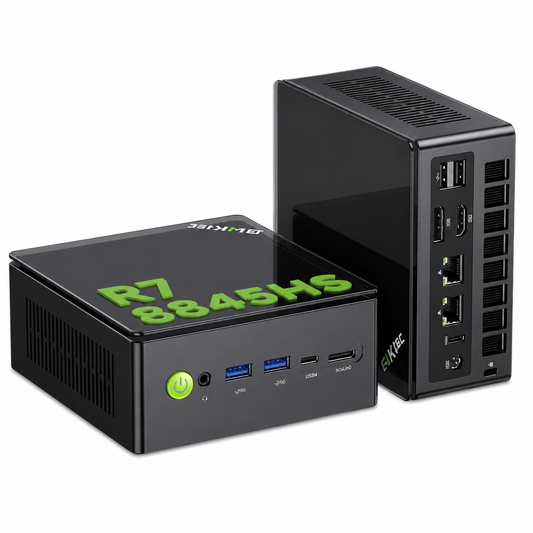
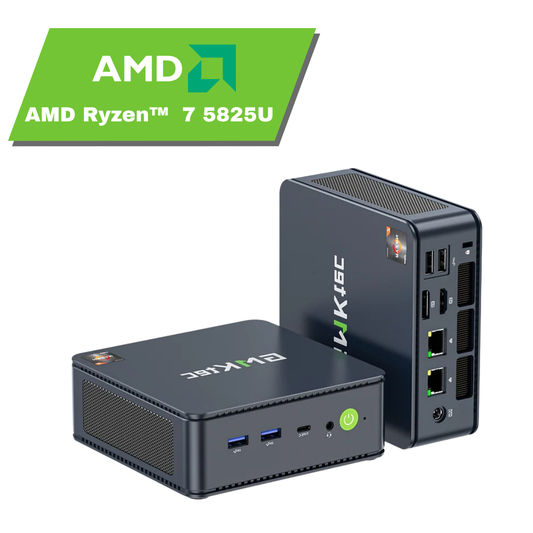
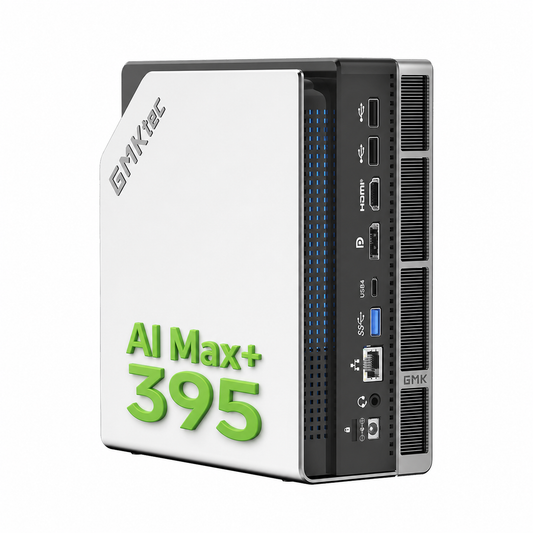
For example, the current GMKtec Europe pages in the model table below explicitly document their OCuLink ports as PCIe Gen4 ×4. That is product-specific evidence; it should not be turned into a claim that every OCuLink-labelled device has the same implementation.
USB4 shares one high-speed link
The USB Implementers Forum explains that USB4 dynamically shares an aggregate high-speed link across multiple data and display protocols. This is why a 40 Gbps label on a GMKtec product page should not be read as 40 Gbps of dedicated, usable GPU traffic.
For Windows USB4 systems, Microsoft documents PCIe tunnelling as the mechanism that enables devices such as external GPUs over USB4. The complete host implementation, firmware policy and enclosure must still work together.
Thunderbolt is not a synonym for every USB-C port
Thunderbolt uses the USB-C connector shape, but Intel states that Thunderbolt certification adds defined minimum capabilities and explicitly lists external graphics as a use case. A mini PC page that says “USB4” should therefore remain “USB4” in your compatibility check unless the manufacturer also documents Thunderbolt support.
What an eGPU setup actually includes
The host port is only one part of the system. Before ordering, make a line-item list of:
- the exact mini PC and its documented OCuLink, USB4 or Thunderbolt implementation;
- an eGPU dock or enclosure that matches that host connection;
- the correct data cable, including its connector and rated capability;
- a graphics card that physically fits the dock or enclosure;
- a power supply with the output and GPU power connectors required by that graphics card and enclosure;
- the display cable and intended monitor connection;
- a supported operating system, firmware and graphics driver.

Seven compatibility checks before you buy
1. Read the exact host-port wording
Look for the protocol, lane or link description on the product page and manual. “USB-C” describes a connector shape. “USB4 40 Gbps”, “Thunderbolt 4” and “OCuLink PCIe Gen4 ×4” describe different capability sets. Do not infer one from another.
2. Match the enclosure to the host connection
An OCuLink host needs a compatible OCuLink dock and cable. A USB4 or Thunderbolt route needs an enclosure that documents compatibility with the host protocol and operating system. Do not assume that an enclosure built for one path accepts the other path through a passive adaptor.
3. Check the cable separately
Use the enclosure maker's recommended cable type and length. A USB-C-shaped cable may be intended only for charging or lower-speed data. An OCuLink cable must match the connector and dock. Treat an unlabelled spare cable as unknown rather than as a performance-ready part.
4. Size the enclosure and power supply for the graphics card
Confirm card length, height, slot thickness, cooling clearance, PSU output and every required GPU power connector. The mini PC's own power adaptor does not normally power a desktop graphics card mounted in a separate dock. Use the enclosure and GPU manufacturers' requirements, not a generic wattage guess.
5. Confirm the operating system, firmware and driver path
Check the enclosure's supported operating systems, then review the mini PC's current firmware or BIOS guidance. Install a driver for the exact GPU from the official AMD driver support page or NVIDIA UK driver page. A driver for a similar card is not a substitute for the supported package.
6. Decide where the monitor will connect
If you want the external graphics card to drive the display, plan to connect the monitor to an output on that card unless the enclosure documentation specifies another supported route. Also choose the correct monitor input. A working eGPU can still appear to show a black screen when the display cable or monitor input points to the mini PC instead.

7. Follow the documented power and connection sequence
For K8 Plus, K11 and K12, the product-page guidance is clear: do not connect or disconnect OCuLink while the mini PC is powered. Where a model page does not state the behaviour, do not infer hot-plug support. Shut the system and eGPU hardware down, follow the enclosure's sequence and reconnect only when both sides are in the state required by their manuals.
Current GMKtec Europe OCuLink and USB4 examples
The following matrix uses product-page specifications checked on 11 August 2026. It does not carry price, stock or promotion claims into the article.
| Model | Documented OCuLink | Documented USB4 | Connection note |
|---|---|---|---|
| GMKtec NucBox K8 Plus | PCIe Gen4 ×4 | 2 × USB4, 40 Gbps | The product page says the OCuLink port is not hot-swappable. |
| GMKtec NucBox K11 | PCIe Gen4 ×4 | 2 × USB4, 40 Gbps | The specification marks OCuLink as non-hot-swappable. |
| GMKtec NucBox K12 | PCIe Gen4 ×4 | 1 × full-function USB4 | Connect or disconnect OCuLink only while the device is powered off. |
| GMKtec NucBox M7 Ultra | PCIe Gen4 ×4 | 2 × full-function USB4, 40 Gbps | Do not infer hot-plug behaviour; verify the current manual and dock instructions. |
This table confirms the host-side ports only. It does not certify a third-party enclosure, cable, PSU or graphics card combination.
Which connection path fits your use case?
Choose an OCuLink route when the setup will stay at one desk
OCuLink can be a sensible choice when the exact mini PC documents the lane configuration, the dock is built for the same connection and you are comfortable with a shutdown-before-connection routine. It suits a planned, fixed setup better than an assumption of plug-and-play convenience.
Choose a USB4 or Thunderbolt enclosure when docking flexibility matters
USB4 or Thunderbolt may suit a desk where a USB-C-shaped connection and enclosure ecosystem are priorities. Check the host specification, enclosure support list, cable and Windows behaviour together. Thunderbolt certification should be verified explicitly; do not promote a USB4-only product description to Thunderbolt by assumption.

Choose the workload before the graphics card
Gaming, rendering, video applications and local AI can place different demands on a GPU. If local AI is part of your plan, use the separate hardware requirements for running local AI guide to think through VRAM, system RAM and storage before choosing a card. This eGPU guide does not rank GPUs or promise that an external connection will make every workload faster.
A cautious first-time setup sequence
- Read the mini PC, enclosure, PSU and GPU instructions before connecting anything.
- With the equipment in the state required by those instructions, secure the graphics card in the dock or enclosure and attach every required GPU power connector.
- Connect the display to the intended output and select the matching monitor input.
- For K8 Plus, K11 and K12, keep the mini PC powered off while attaching the OCuLink cable. For another model, including M7 Ultra, verify the current manual and dock instructions; if they do not explicitly allow hot-plugging, keep both sides powered off while connecting.
- Apply enclosure and mini-PC power in the order specified by the enclosure maker, then start Windows.
- Install the correct graphics driver and restart if the driver package requests it.
- Confirm that Windows sees the graphics card before launching a demanding application.
- Test one known workload at conservative settings, then change one variable at a time if troubleshooting is required.
On a USB4-capable Windows 11 system, Microsoft says attached devices and capabilities may appear under Bluetooth & devices > USB > USB4 Hubs and Devices. If that page is absent, it is a clue rather than a complete diagnosis; the host router, firmware implementation and device state also matter.
Common eGPU symptoms and what to check
| Symptom | First checks |
|---|---|
| The graphics card is not detected | Recheck the host protocol, enclosure compatibility, cable, enclosure power, GPU power connectors, firmware settings and graphics driver. |
| The GPU appears but the monitor is black | Check the display cable, monitor input, GPU output, Windows display mode and the enclosure maker's startup sequence. |
| The connection drops under load | Check cable seating, PSU capacity, GPU power connectors, enclosure cooling and driver stability. Do not convert the symptom into a bandwidth conclusion without measurement. |
| A USB4 device appears but the GPU does not | Confirm that the enclosure exposes a supported PCIe graphics device, that PCIe tunnelling is available and that the exact GPU and operating system are supported. |
| OCuLink works only after a full shutdown | That is consistent with the power-off or non-hot-swap guidance for K8 Plus, K11 and K12. Power off before reseating or reconnecting the cable. |
Frequently asked questions
Is OCuLink always faster than USB4 for an eGPU?
No universal percentage is defensible from the port labels alone. A valid comparison needs the same mini PC, GPU, enclosure, cable, driver, display route and workload. OCuLink lane specifications and USB4 aggregate bandwidth are not interchangeable measurements.
Can any USB4 port run an external GPU?
USB4 provides a route for PCIe tunnelling on supported Windows systems, but the complete implementation still matters. Confirm the exact host specification, firmware, operating system, enclosure support list and cable before purchase.
Will a Thunderbolt eGPU enclosure work on a USB4-only mini PC?
It may be compatible in some combinations, but connector shape and broad backward-compatibility language are not enough for a buying decision. Use the enclosure maker's tested host or protocol list and the mini-PC specification. If neither side documents the combination, treat it as unconfirmed.
Can I hot-plug OCuLink on the GMKtec models in this guide?
Do not assume that you can. K8 Plus and K11 mark the port as non-hot-swappable, and K12 explicitly requires the device to be powered off before connection or disconnection. The M7 Ultra product page confirms the port but does not establish hot-plug behaviour, so follow the current manual and dock instructions; if they do not explicitly allow it, use a power-off connection routine.
Does an eGPU turn every mini PC into a gaming or AI workstation?
No. CPU capability, memory, storage, power, cooling, software support and the external link can all affect the result. Start with the workload and its requirements, then decide whether an eGPU is a sensible part of the complete system.
Final decision checklist
- Choose OCuLink when the host and dock explicitly match, a fixed desk is acceptable and you can follow the required power-off connection routine.
- Choose USB4 or Thunderbolt when a compatible enclosure and docking-style connection matter more, and every part of the PCIe-tunnelling path is documented.
- Pause the purchase when the product page lists only “USB-C”, the enclosure does not name the host protocol, the cable is unverified or the PSU and GPU requirements are unclear.
Once the connection chain is confirmed, compare current GMKtec Europe mini PCs by the exact ports and workload features you need. Recheck the live product page and manual before ordering, because specifications and available configurations can change.