

GMKtec K13 + Clawdbot: Building a Silent, Always-On AI Desktop
Be the first to successfully run Clawdbot.
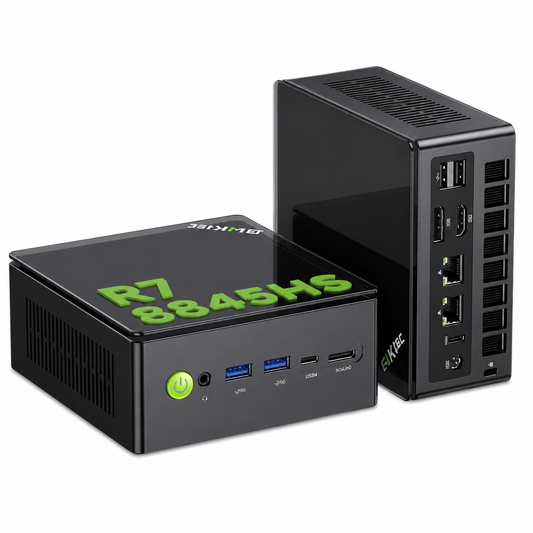
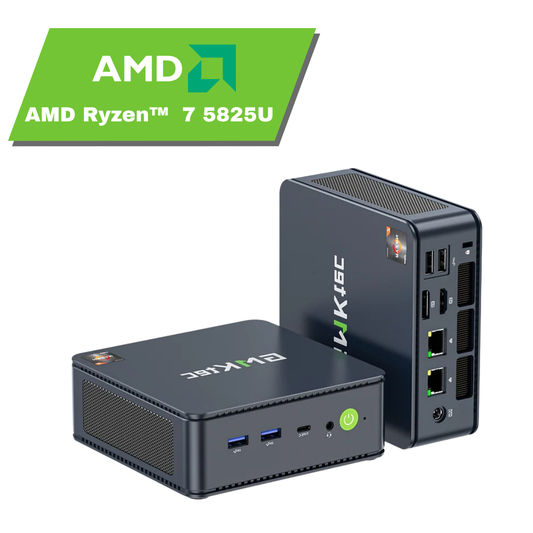
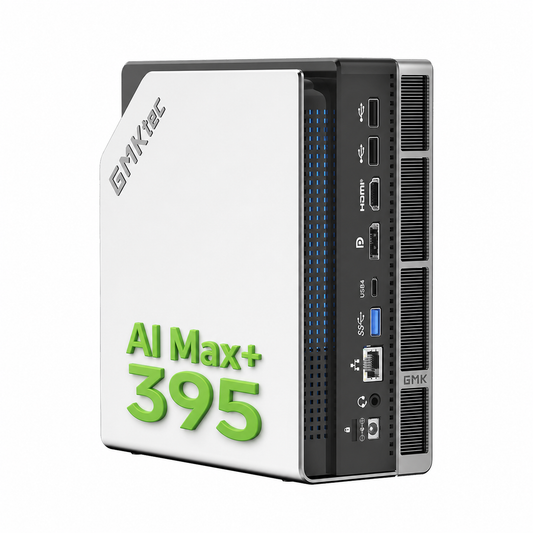
What we’re inviting you to do right now is not just deploying an AI tool—it’s a deep exploration of the true potential of your desktop computing power.In your hands, the GMKtec K13 is more than a compact PC. It is an ultra-integrated computing hub, purpose-built for pioneers like you who want to move faster, quieter, and smarter into AI-driven workflows.
Why K13? A Computer That Refuses to “Over-Compete” — and Finds a New Blue Ocean
While many machines obsess over gaming frame rates and benchmark scores, the K13 takes a more intelligent path. Instead of chasing extreme peak performance, it focuses on solving a more universal challenge:
How do you balance efficient creation, intelligent office work, and a quiet, elegant desktop environment—without compromise?

The true next-generation desktop is not just powerful—it understands context.
K13 is precisely positioned in a wide-open blue ocean: professional lightweight creation + intelligent integrated office computing.
It is designed to deliver dense, deployable, quiet, and reliable computing power for:
● AI applications and inference
● Content creation
● Multitasking workflows
● Enterprise intelligent scenarios

Designed to Understand Your Working Rhythm
What makes the K13 special is its ability to adapt to you, not the other way around:
● Three Performance Modes, Fully Under Your Control
When deploying Clawdbot, you can freely switch between:
● Silent Mode – for deep focus without distraction
● Balanced Mode – optimal efficiency with controlled power consumption
● Performance Mode – full computing power for faster results
You decide when to hold back—and when to go all in.
● Quiet Is a Form of Professional Reliability
Even during AI inference workloads, the K13’s innovative through-board cooling system keeps noise to a whisper.
It belongs on your desk, in a meeting room, or at home—running stably without demanding attention.
● Vision Enables Productivity
With dual full-speed USB4 ports, you can easily connect up to three 4K displays.
Code on the left, models running in the center, documentation on the right—true multi-threaded work, finally visible at a glance.

Why Now? The Right Time for Deployment
Launching the K13 in February 2026, during the enterprise IT refresh season, is a deliberate choice.
We want to set a clear benchmark:
At this price segment, you no longer need to choose between performance, size, silence, and professional capabilities.
The GMKtec K13 is redefining what a “professional standard” desktop should be.
It’s not just a tool—it’s your efficient entry ticket into AI-powered workflows.
Let’s Wake It Up: Deploy Clawdbot on Your K13
Ready?
Follow the steps below to deploy Clawdbot on your quiet yet powerful K13 and begin your intelligent creation journey.
Step-by-Step Clawdbot Deployment Guide
I. Environment Setup
1. Disable the Firewall
● Open Control Panel
● Go to System and Security → Firewall → Advanced Settings

II. Download Required Components
1. Install WSL2 + Ubuntu
Scenario 1: Wired Network Connected
● Insert an Ethernet cable
● Run Windows PowerShell as Administrator
● Enter: wsl --install
● Wait until progress reaches 100%
● Ubuntu will install automatically

Scenario 2: Restart Required

● Restart the system
● Run Windows PowerShell as Administrator
● Enter: wsl --list --online wsl --install -d Ubuntu-24.04
● Wait for installation
● Create a username and password
● Restart once completed

2. Update Ubuntu Environment
● Open Ubuntu
sudo apt update && sudo apt upgrade -y
● Enter your password and wait for completion

3. Install Node.js 22 and Dependencies
curl -fsSL https://deb.nodesource.com/setup_22.x | sudo -E bash - sudo apt-get install -y nodejs

4. Verify Versions
● Run in Windows PowerShell (Administrator):
wsl -l -v wsl lsb_release -a
● Confirm WSL2 and Ubuntu 24.04 are in use

III. Install Clawdbot
(also known as “Big Lobster” or “Jarvis”)
1. Installation
● Open Ubuntu
curl -fsSL https://clawd.bot/install.sh | bash
● Confirm prompts:
○ yes
○ QuickStart
○ Qwen
○ Qwen OAuth
● Copy the authentication link, log in via browser
● Select Keep current (qwen-portal / coder-model)


2. Social Platform Configuration
● Choose:
○ Skip for now
○ No
● Press Space to select:
○ boot-md
○ command-logger
○ session-memory
● Press Enter to confirm
● Select Hatch in TUI
● Press Ctrl + C to pause Clawdbot

3. Fix Gateway Authorization Issues
clawdbot dashboard
● Copy the link and authorize in your browser
● Restart gateway:
clawdbot gateway restart

IV. Verify Successful Operation
1. Testing
● Open Ubuntu
● In your browser, visit:
http://127.0.0.1:18789/
● If the top-right corner shows Health: OK, Clawdbot is running successfully
● You can now start asking questions or issuing commands

Notes: Integration with Collaboration Platforms
If you plan to integrate Clawdbot with Feishu or other collaboration tools, prepare the following:
1. MiniMax or OpenAI API Key
2. Brave API Key
3. Accounts for the relevant collaboration platforms