

Barebone vs Prebuilt Mini PC: Which Should You Buy?
Choose a prebuilt mini PC when you want memory and storage fitted for you. Choose a barebone mini PC when you have a clear reason to select those parts yourself and are comfortable setting up the operating system. Neither is automatically better value: the useful comparison is the cost and effort of reaching the same finished specification.
A lower starting price can be attractive until you discover that the selected configuration has no RAM, SSD or operating system. Equally, paying for a configured system may not make sense when you already own suitable components. This guide explains how to choose between the two without confusing a configuration label with performance or upgradeability.
What is the difference between a barebone and a prebuilt mini PC?
For the GMKtec models discussed here, the barebone option is explicitly labelled No RAM/SSD/Operating System. The selected computer still has its listed processor, but you must arrange compatible memory, storage and an operating system before normal use. The NucBox M6 Ultra product page makes this distinction in its configuration selector.
In this guide, prebuilt means a configured option with the advertised RAM and SSD already fitted. Do not take that word alone as confirmation that Windows is included: check the operating-system description and order details too. GMKtec's first-boot setup guide separates the configured and barebone paths for this reason.
| Buying consideration | Barebone option | Configured / prebuilt option |
|---|---|---|
| RAM and SSD | You supply compatible parts when the listing excludes them. | The advertised capacities are fitted. |
| Operating system | Arrange it separately when the option says no OS. | Check inclusion, edition and licence details. |
| Initial work | Component installation plus software setup. | Connections and initial setup; normally no component installation. |
| Useful comparison | Finished cost after adding everything missing. | Price of the configuration you will actually use. |
| Future upgrades | Determined by the exact model. | Also determined by the exact model. |
Check accessories separately. A product photograph showing a monitor or keyboard is not a packing list, and a bundle offer should not be assumed to apply to every variant.
Which type should you choose?
Choose prebuilt when the computer is a tool, not a project
For a first mini PC, a family computer or a workstation needed for an upcoming deadline, a configured option is the more straightforward starting point. You can focus on whether its specification suits your work rather than turning the purchase into a component-selection exercise.
The value is not simply avoiding a few screws. You also avoid having to decide which memory modules to order, whether an SSD fits, and how to prepare the machine for its first operating-system installation. Those decisions may be enjoyable for an enthusiast and unwelcome for someone replacing a broken work computer.
Our recommendation is to favour a suitable configured option when you do not already have a specific component plan. Check the chosen RAM and storage capacities, confirm Windows inclusion where required, and judge the complete package against your budget.
Choose barebone when customisation solves a real need
A barebone build is worth considering when you already own confirmed-compatible RAM and storage, want a particular supported SSD, or have an established operating-system deployment plan. The benefit is choosing what goes into the computer instead of buying a configuration and immediately replacing parts.
Make that benefit specific. “I need this supported storage capacity for my project files” is a stronger reason than “barebone must be cheaper”. Similarly, reusing components makes sense only after checking their exact part numbers and deciding whether their remaining capacity suits the new machine.
For a Linux or home-lab project, put software and hardware compatibility ahead of the barebone label. Plan to verify the chosen distribution, network hardware and intended applications for the exact model; an empty SSD is not a compatibility certification.
Do not use the configuration label as a performance ranking
Barebone describes what you are buying, not a guaranteed speed advantage. To make a fair performance comparison, hold the model, final memory configuration, SSD and software conditions constant. A more expensive configured option should be judged on what it includes, not assumed to be a different processor tier.
Compare complete cost, not the starting price
Build both quotes around the same target specification. If your target is 32GB RAM and a 1TB SSD, compare a configured option with those capacities against the barebone option plus the compatible components needed to reach them. Decide separately whether both quotes include the operating system you need.
Barebone finished cost = computer + missing RAM + missing SSD + required operating-system licence + delivery and any setup items you still need.
Configured finished cost = selected configuration + any required extras or immediate upgrades + delivery.
A useful shortcut is to subtract the barebone price from the configured price. That difference is the amount available for the missing components and software before the barebone route stops being cheaper. Compare like-for-like parts rather than using the cheapest incompatible memory to make one route appear better.
For EU comparisons, keep the VAT basis consistent and check the delivery information for the actual order. A quote marked VAT excluded cannot be compared directly with a VAT-inclusive total. This guide does not use fixed promotional prices because the decision should still make sense after an offer changes.
Also give your time a practical value. You do not need to invent an hourly rate: simply ask whether a small saving is worthwhile if you must research parts, prepare installation media and diagnose the build yourself. Conversely, a familiar installation process may be little extra effort when you already manage your own computers.
Check these three areas before buying a barebone mini PC
1. Memory: match the generation and the model
Confirm the required memory generation, module format, supported capacity and intended module layout. DDR4 and DDR5 are not interchangeable; Kingston's memory compatibility guide explains their different physical and electrical requirements. A spare module is useful only when it is the right type for the system.
Write down the proposed layout as well as the total capacity. For example, one 32GB module and two 16GB modules are different purchasing plans. Check the model's supported arrangement rather than assuming that a matching total settles the question.
Choose capacity around your workload instead of filling every available slot by default. For a separate discussion of everyday work, multitasking and larger projects, use our mini PC RAM guide.
2. Storage: M.2 is not a complete compatibility specification
Record the SSD length, supported interface and physical-clearance requirements for the slot you will use. A 2280 module is 22mm wide and 80mm long, but its size alone does not tell you whether the computer supports its storage interface. M.2 SSDs can use SATA or PCIe, and a similar-looking connector is not proof of compatibility.
Kingston's M.2 FAQ explains why the drive and host must support the same interface. Check the documented capacity and clearance too, especially before buying a drive with a large heatsink.
When reusing storage, make a separate backup before any operating-system installation or partition changes. Our mini PC SSD guide covers the difference between adding data storage and replacing a system drive.
3. Windows: installation and licensing are separate
Do not treat “supports Windows 11” as “Windows 11 is included”. For a no-OS purchase, establish how you will obtain both the installation files and a valid licence for the computer. Microsoft explains that Windows activation needs an appropriate digital licence or product key, and that the installed edition must match the licence in its Windows activation guidance.
For the standard USB installation route, Microsoft's installation-media instructions call for a blank USB drive with at least 8GB of space and a computer with internet access. Creating the media deletes the USB drive's existing contents. Back up files on reused storage before installing Windows as well.
Do not count a licence from an older PC as a guaranteed saving without checking its terms and applicability. For a configured purchase, record the included Windows edition and check activation during initial setup rather than assuming the desktop appearing settles every software question.
Two GMKtec EU configuration examples
NucBox M6 Ultra
The M6 Ultra lists an AMD Ryzen 5 7640HS processor. Alongside its barebone option, the EU page lists configurations including 16GB RAM with a 512GB SSD and 32GB RAM with a 1TB SSD. It is a useful place to compare the cost of supplying your own components against choosing a listed configuration.
NucBox K8 Plus
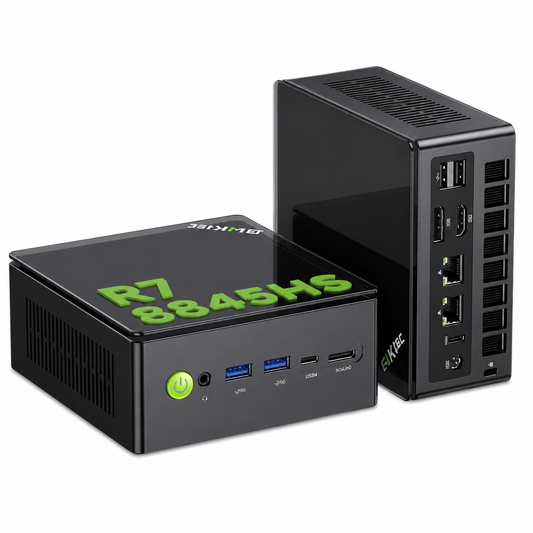
The K8 Plus lists an AMD Ryzen 7 8845HS processor and distinguishes its no-RAM/no-SSD/no-OS option from a 32GB RAM and 1TB SSD configuration. Its storage specification lists M.2 2280 PCIe NVMe support rather than SATA SSD support, illustrating why an existing M.2 drive needs an interface check before reuse.
These are examples of buying options, not a benchmark ranking or confirmation that every variant is in stock. Select the required configuration to check its current price, availability and included software.
Make the final decision before ordering
Save a simple build note containing the exact model, selected variant, target RAM and SSD capacities, operating-system plan and complete quoted cost. For a barebone order, add the proposed component part numbers and confirm any unresolved compatibility questions through GMKtec EU support.
For a configured order, check the specification you will receive rather than a model's maximum supported capacity. The advertised upgrade ceiling is not the installed amount. Our memory guide also explains why upgradeability depends on the model, not simply on whether you buy it configured.
Finally, decide what you will do on arrival. A barebone build needs the exact model's installation instructions; a configured system needs its initial software and hardware checks. Keep the first-boot guide alongside your order details.
Frequently asked questions
Does a barebone mini PC include a CPU?
The M6 Ultra and K8 Plus examples above include their listed processors; their barebone exclusions are RAM, SSD and OS. Read the exact listing rather than applying this definition to every product sold as a kit.
Is a barebone mini PC always cheaper?
No. Compare its finished cost after adding missing components and any required software with a configured system of the same specification. Reusing suitable parts can change the calculation, but the starting price alone does not answer it.
Can I reuse RAM and an SSD from a laptop?
Possibly, but confirm their part numbers against the mini PC's memory and storage requirements first. Matching capacity is insufficient: memory generation, module format, SSD interface and physical fit all need checking.
Does downloading Windows give me a Windows licence?
No. Installation media and activation are separate. Microsoft's activation guidance above explains the valid digital licence or product key required, including the need to match the Windows edition.
Can a prebuilt mini PC still be upgraded?
It depends on its hardware design. Buying fitted RAM and storage does not itself remove an upgrade path, but it does not create one either. Check the exact model's removable components and documented limits.
Which is the better choice for a beginner?
Our recommendation is a configured option with the RAM, SSD and operating system you need. Consider barebone when you have a clear parts plan and are comfortable completing the installation, not simply because its displayed price is lower.
Choose the route that fits the finished computer you need
Start with the workload and final specification, then choose how to get there. A configured mini PC prioritises convenience; barebone gives you more responsibility for component selection and setup. Browse the GMKtec EU mini PC collection, select a model that meets your requirements, and compare its actual configurations before deciding.