

How Many Monitors Can a Mini PC Support? Setup Guide
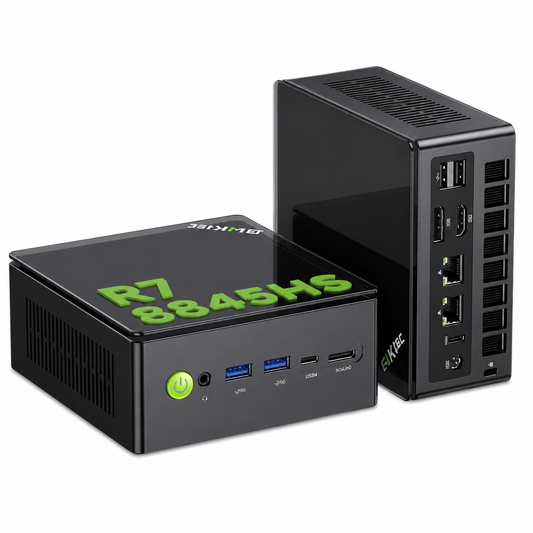
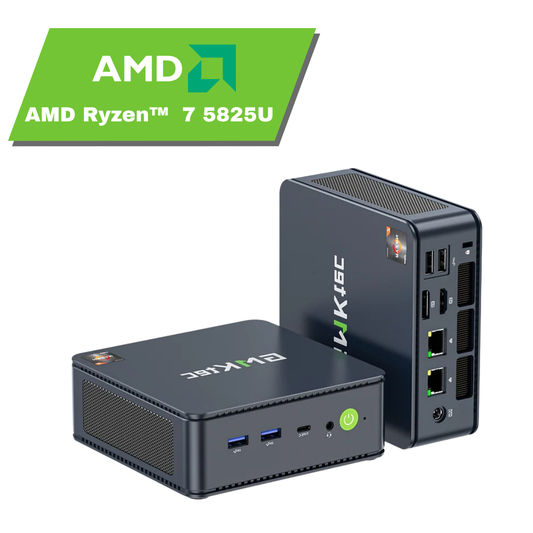
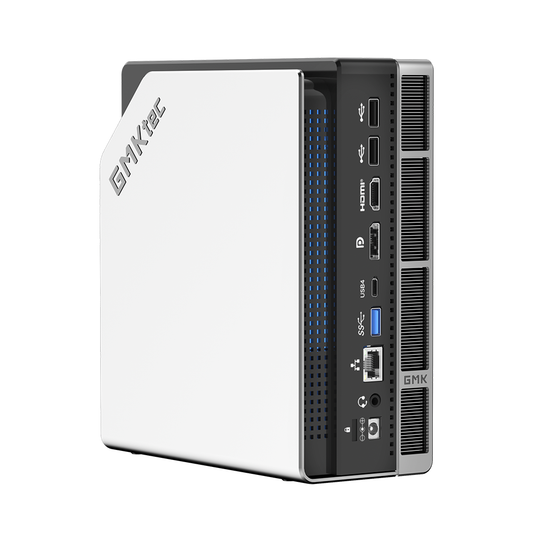
A Mini PC may support one, two, three or four monitors, but the correct number is model-specific. Count only the video outputs that the manufacturer documents for simultaneous use, then check the resolution and refresh rate required on each screen. A USB-C connector does not automatically provide video, and an HDMI splitter normally duplicates one signal instead of creating two independent desktops.
The safest buying rule is simple: verify the complete display chain before ordering the Mini PC, monitors or cables. That chain includes the computer's documented display limit, each output port, every cable or adaptor, the monitor inputs, the intended resolution and refresh rate, and the final Windows settings.
The quick answer: count supported displays, not connectors
Several physical connectors can appear on a Mini PC without proving that all of them work as independent video outputs at the same time. Use this four-part check:
- Find the stated simultaneous-display limit. Look for wording such as “triple display” or “simultaneous four-screen output”.
- Identify the video-capable ports. HDMI and DisplayPort are usually clear; USB-C must explicitly document video, DisplayPort, DP Alt Mode, USB4 or Thunderbolt capability.
- Match each screen's resolution and refresh rate. A port's maximum headline resolution does not prove every multi-screen combination.
- Check the whole connection path. The cable, adaptor, dock and monitor input must support the required mode as well.
The existing GMKtec Mini PC buying guide explains why ports matter when choosing a compact computer. The extra step here is to turn those port labels into a screen-by-screen plan.
Current GMKtec EU examples show why the exact model matters
The examples below use product-page specifications checked on 25 August 2026. They do not include price, stock or promotional claims, and one model's display support should never be applied to another model by assumption.
| Model | Documented display path | What the page confirms | Planning note |
|---|---|---|---|
| GMKtec NucBox G11 | 2 × HDMI 2.0 plus 1 × USB-C | Triple-display support up to 4K; USB-C supports DP video up to 4K at 60 Hz | The same page says the USB-C port is not a power input, showing why video and power functions must be checked separately. |
| GMKtec NucBox M6 Ultra | HDMI 2.0, DisplayPort and USB4 | HDMI and DisplayPort are listed at 4K 60 Hz; USB4 is listed with video capability up to 8K | The page lists three video-capable outputs but does not state a simultaneous three-screen limit in the specification reviewed. Confirm the intended combination if three screens are essential. |
| GMKtec NucBox K12 | HDMI 2.1, DisplayPort 1.4, USB4 and USB-C | Simultaneous four-screen output | Plan one verified cable path for each screen rather than assuming a hub or splitter will create the same result. |

A USB-C connector does not prove that it carries video
USB-C describes the connector shape, not one guaranteed set of functions. A USB-C port may support data only, video output, power delivery, power input, USB4, Thunderbolt, or a documented combination. The VESA DisplayPort FAQ explains that DisplayPort over USB-C requires support from the device and that product documentation is the correct place to verify it.
Read the exact wording on both sides of the connection. The Mini PC must output video through that port; the monitor, dock or adaptor must accept the corresponding signal; and the cable must support the required function. A USB-C charging cable that works with a phone is not automatically a suitable display cable.
The G11 example is useful because its product page explicitly separates two capabilities: the USB-C port supports DisplayPort video, but it does not accept USB-C power input. That is much stronger evidence than the connector shape alone.
Plan resolution and refresh rate for every screen
Screen count is only the first decision. A three-monitor office at 1920 × 1080 and 60 Hz is a different workload from three high-resolution or high-refresh gaming displays. Write down the target mode for each monitor before choosing cables or adaptors.
| Screen | Monitor input | Mini PC output | Cable or adaptor | Target mode |
|---|---|---|---|---|
| Primary | For example, DisplayPort | Verified DisplayPort output | Direct DisplayPort cable | Resolution and refresh rate required for the main task |
| Secondary | For example, HDMI | Verified HDMI output | Direct HDMI cable | Document or reference-screen mode |
| Third or fourth | USB-C, DisplayPort or HDMI | Explicitly documented video output | Compatible direct cable or documented adaptor | Mode supported by the complete path |
Windows shows the current resolution and refresh rate for each selected display under Advanced display. Microsoft's Windows refresh-rate guide also notes that the available rates depend on the display and current mode. If a preferred rate is missing, recheck the port, cable, adaptor and monitor specification before treating it as a software problem.
Direct outputs, docks and splitters are not interchangeable
Direct connections are the clearest starting point
For a first setup, connect each monitor directly to a documented output wherever possible. This removes a dock, hub or conversion stage from the diagnostic chain. Once the direct setup works, add optional accessories one at a time.
An HDMI splitter normally mirrors one signal
A splitter can be useful when two screens should show the same content, but it is not the same as two independent video outputs. Microsoft's external-monitor troubleshooting guidance states that a display splitter duplicates the signal rather than creating two independent extended displays.
A dock only works within the host connection's capability
A dock may provide convenient monitor sockets, but it cannot create a video protocol that the Mini PC does not expose. Check the exact host port, dock support list, cable and operating system together. If the dock advertises multiple outputs, also confirm whether it supports independent extended screens at the resolution and refresh rate you need.
Set up multiple monitors in Windows 11
- Start with one direct display. Confirm a stable picture at the intended resolution before adding a second screen.
- Install current Windows and exact-model graphics updates. Avoid another model's driver or firmware package.
- Add one monitor at a time. This makes a failed cable, input or port easier to identify.
- Choose Extend. Press Windows key + P and select Extend when each monitor should have its own desktop area.
- Identify and arrange the screens. Open Settings > System > Display, select Identify, and drag the numbered displays to match their physical positions.
- Detect a missing display. Under Multiple displays, use Detect after checking power, the monitor input and cable seating.
- Check each screen's Advanced display page. Select the correct monitor, then confirm resolution and refresh rate individually.
- Test restart and sleep. A setup is not finished until every display returns predictably after a normal restart and wake cycle.
Microsoft's multiple-monitor setup guide documents the Identify, Detect and arrangement controls. For the wider first-boot sequence, use the GMKtec Mini PC setup guide before moving files or adding a large accessory chain.

Diagnose one display problem at a time
| Symptom | First checks |
|---|---|
| No picture on one monitor | Confirm monitor power and input selection, reseat the cable, test a direct connection, and verify that the chosen Mini PC port is a documented video output. |
| Both monitors show the same image | Select Extend in Windows. If both screens use one splitter, move them to independent supported outputs when an extended desktop is required. |
| USB-C monitor stays blank | Confirm video capability on the Mini PC port, monitor or adaptor, and cable. Do not infer DisplayPort support from USB-C shape. |
| Resolution is correct but refresh rate is low | Check the selected display in Advanced display, then verify the complete port, cable, adaptor and monitor path for the intended mode. |
| Direct connection works but a dock does not | Reconnect directly, then verify the dock's host protocol, output limits, driver or firmware requirements and cable specification. |
| A second or third display is not detected | Return to one known-good screen, add the others individually, use Detect, and confirm that the model explicitly supports the required simultaneous count. |
Choose the Mini PC for the desk you actually plan to build
- For two office monitors: look for two documented independent outputs at the required resolution and refresh rate. Prefer direct cables for the initial setup.
- For three monitors: choose a model that explicitly confirms triple-display support, not merely one that happens to show three connector shapes.
- For four monitors: require explicit simultaneous four-screen wording and map one supported path to each display.
- For high-refresh gaming or demanding creative work: verify the complete display mode and graphics workload separately. The ability to connect a screen is not a promise of application or game performance.
- For a dock-based desk: verify the Mini PC host protocol, dock support, cable, outputs and operating system as one combination.
When comparing models, open the exact specification for each option in the GMKtec EU All Mini PCs collection. Avoid carrying a port claim, screen count or maximum resolution from a similarly named model to the one you intend to buy.
Frequently asked questions
Can every Mini PC run two monitors?
No universal answer is safe. Many current models document two or more outputs, but the supported number and modes depend on the exact Mini PC. Check the product specification rather than the category name.
Can every USB-C port connect to a monitor?
No. The Mini PC documentation must confirm video output through that USB-C port. The display path also needs a compatible monitor, adaptor or dock and cable.
Will an HDMI splitter give me an extended desktop?
Normally no. A splitter duplicates one source signal. For independent Windows desktops, use separate supported video paths or a documented dock solution that explicitly supports extended displays.
Does an 8K output mean the Mini PC can run four 8K monitors?
No. A maximum resolution attached to one output does not establish the supported multi-display combination. Use only the simultaneous modes documented for the exact model.
Do all monitors need the same resolution?
Not necessarily. Windows can configure displays individually, but each selected resolution and refresh rate still has to be supported by that monitor and its complete connection path.
Final multi-monitor checklist
- Confirm the exact Mini PC model and simultaneous-display limit.
- List every documented video-capable output.
- Do not treat USB-C shape as proof of video or power capability.
- Map one monitor input, cable or adaptor, resolution and refresh rate to each screen.
- Use direct connections first and add docks or hubs only after the baseline works.
- Choose Extend, then Identify, arrange and check each display in Windows.
- Test one screen at a time, followed by restart and sleep.
The right Mini PC is not simply the one with the most ports. It is the one whose documented display support matches the number of screens, connection types and modes your desk actually requires.